

This plus two result analysing tool ResultMaster Pro, is beneficial for everyone, from teachers and students to parents. It provides the necessary data & insights that help you make smarter decisions regarding your plus two result.

ResultMaster Pro
ResultMaster Pro Offline +2 Result Analyzer tool is designed to generate a wide range of reports to help schools analyze their Higher Secondary Second Year results. This tool includes features that generate group-wise, subject-wise, and individual result analysis reports, providing valuable insights into student performance.
In addition to these reports, our tool can also generate reports on top-performing students, subject-wise pass percentages, and analysing of the results.
Try our ResultMaster Pro, +2 Offline Result Analyzer tool today and discover how easy it is to analyze your Higher Secondary Second Year results.
| Type | School Software(Offline) |
| Category | Plus two Result Analyser |
| Name | ResultMaster Pro |
| Developer | Sri.Visakh Vijay, HSST Computer Science, NRPM HSS, Kayamkulam |
| Software Requirements |
Microsoft Windows, MS-Excel |
| Last updated on |
12th May 2026 |
We understand that using new software can be daunting, which is why we have included a comprehensive help file with our simple tool for analyzing Higher Secondary Second Year results. This help file is designed to guide users through every step of the process, providing clear and concise instructions on how to use the software to its full potential.
Our help file includes detailed information on how to input and import data, how to generate different types of reports, and how to customize the settings to meet the unique needs of each school.
Basic Settings of the Result Anlayser
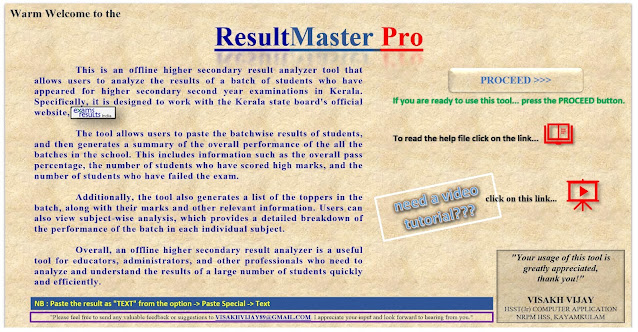
This is the Home Page of the tool. From here you can go to the Result Site Link, Proceed to the result analyser button and Help Files. Click the PROCEED button given here.
By clicking on School
Setting button, you can enter your school code. School
Setting window looks like below.
Here you can enter your School Code to get the school’s
name and batch details as per HSCAP. Details will be
displayed like below.After entering the mark list of the selected batch, the
window will show a quick summary of the said batch as
shown below.
How to copy marklist in result analyser
To check the second year(Plus two) higher secondary results in Kerala, you can visit the website keralaresults.nic.in. From the homepage of the website, navigate to the DHSE result link and click on it. On the DHSE result page, you will find different options to check your result. Look for the "School Wise Result" link and click on it. This link will take you to a new page where you will be asked to enter the school code to view the results of all the students who appeared for the higher secondary exams from that school.
If you do not know the school code, you can easily find it on the list provided here.
Once you have entered the school code, click on the "Get Result" button to access the results of all the students from that school who appeared for the higher secondary exams.
By selecting the "School Wise Result" option, you can quickly access the results of your school and you will get a window
like below.
and select Paste Special as shown below.
then insert the contents as text
Reports generated using Analyser
The result analyzer generates various reports that can be helpful for students, parents, and schools.Result Summary
One of the reports generated is the "Result Summary", which provides an overview of the overall performance of students who appeared for the higher secondary exams in Kerala. This report shows the total number of students who appeared for the exam, the number of students who passed, the overall pass percentage, and other important statistics.Toppers List
Another report generated by the result analyzer is the "Toppers List", which provides a list of the top-performing students in the higher secondary exams. This report includes the names and marks obtained by the students who secured the highest marks in each subject. It will generate Batch Wise Toppers List (6 A+ & 5 A+). User can select the Batch.Batchwise Scoresheet
The "Batch Wise Score Sheet" report generated by the result analyzer provides a detailed report of the scores obtained by each student in their respective batches. This report can be useful for schools to track the performance of their students and identify areas where they need to improve.Subjectwsie Scoresheet
The "Subject Wise Score Sheet" report provides a detailed report of the scores obtained by each student in each subject. This report can help students and parents to identify their strengths and weaknesses in different subjects and plan their future academic pursuits accordingly.Subjectwise Analysis
Finally, the "Subject Wise Analysis" report generated by the result analyzer provides an in-depth analysis of the performance of students in each subject. This report can help students and teachers to identify areas where students need to improve and adjust their teaching methodologies accordingly. Overall, the result analyzer provides a range of reports that can be useful for students, parents, and schools to track and analyze the performance of students in the higher secondary exams in Kerala.Result Analyser-Download Link
You can download the Excel software tool and help file for the higher secondary second year result analysis from the following link. The software tool is compatible with Microsoft Excel and can be downloaded for free. The help file is available in PDF format and can be downloaded and viewed on any device that supports PDF files. With the help of this software tool and help file, you can perform a detailed analysis of the higher secondary results and gain a deeper understanding of the performance of students in your school.


where is the software
ReplyDelete